To view all available tutoring options, visit the online scheduler, TutorTrac. Instructions are available below to guide you. If you have any questions, contact [email protected].
TutorTrac Scheduling Instructions
Make an Appointment
Please note: Only drop-in hours are live on the TutorTrac schedule. Since peer learning assistants need advance notification, no open appointments will display for the current day. **Please use a computer or laptop to log in to TutorTrac. TutorTrac is not mobile-friendly.**
For in-person appointments, please note the location of your tutoring session as the Center for Learning Excellence has several locations around campus.
For online appointments, log into TutorTrac 15 minutes before the appointment to get your Zoom link, which will appear at the bottom of the TutorTrac main page.
Appointments canceled less than two hours in advance will result in a "No Show" on your TutorTrac account. If you receive two or more "No Show" appointments on your account, you will be locked out of TutorTrac. If this has happened, contact us at [email protected] to discuss unlocking your account.
- Using a computer or laptop, login to TutorTrac.
- On the left sidebar, in the "Student Options" box, click the Search Availability button.
- In the Search Options box, select one of the following: Subject Tutoring or Writing Tutoring.
- Subject Tutoring will allow you to search for a particular course.
- For the Section menu, select the course for which you need a peer learning assistant.
- A course choice is not necessary if you selected Writing Tutoring.
- For the From and To fields, select a date for each to establish a date range.
- For the Time field, select the time range.
- For the Days field, select the day(s) that you are available to meet with a peer learning assistant.
- You can choose "All" days, "None" of the days, "M-F" for Monday through Friday, or click on the individual day(s).
- Click the Search button.
- You will see the available peer learning assistants for the course during the time range you selected.
- A green highlight means that you can schedule a one-on-one appointment with any of those peer learning assistants.
- NOTE: To see the location of an appointment, hover your cursor over an appointment box. An off-white text box will appear, displaying the time and location of the appointment.
- A blue or yellow highlight (for Drop-in Hours, Guided Study Groups, and Exam Prep) don't require an appointment—you must hover your cursor over the drop-in box to see the location!
- To schedule a one-on-one appointment, click on a green box that has the date/time you want.
The Appointment Info window will open as shown below.- The Center field will be populated with the choice you made earlier, i.e., Subject Tutoring or Writing Tutoring.
- Your course will appear next in the Subject field.
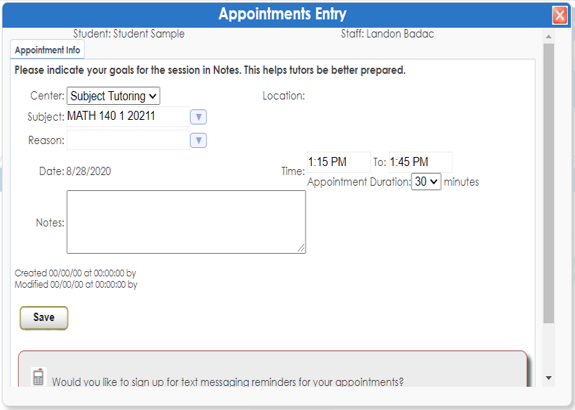
- Optional: For the Reason field, select a reason for your session.
- The date and time that you selected appears after the Reason field. For the Appointment Duration field, you can increase the duration of the appointment to 60 minutes, if the peer learning assistant is available.
- In the Notes box, enter your goals for the session. You may also add a phone number or any notes that pertain to the material.
- We recommend that you sign up for text alerts to remind you of your upcoming appointments. To do so, scroll down to the box that asks "Would you like to sign up for text messaging reminders for your appointments?" and click the Yes button.
- Click the Save button.
- A confirmation message will be sent to your Penn State email address.
- The location of your appointment will be stated in the confirmation email.
- For online appointments, the Zoom link appears on TutorTrac's main menu 15 minutes before your appointment.
Cancel an Appointment
To cancel the appointment, go to your Main Menu page where your Upcoming Appointments are listed. Click on the "x" for the appointment that you want to cancel. You must do so at least two hours in advance to avoid getting a "No-Show" on your TutorTrac account.
After two No-Shows, you will be unable to schedule an appointment for the rest of the semester. However, you may still attend Drop-in, Guided Study Group, and Exam Prep sessions.
TutorTrac counts the number of times you cancel tutoring appointments. More than eight cancellations will result in your TutorTrac account being locked. If this happens, please email [email protected] to discuss unlocking your account.
If you must cancel your appointment last minute, please email the peer learning assistant directly. The peer learning assistant's name is included in the confirmation email. To find the peer learning assistant's email, search their name on the search engine of your Penn State Outlook page or application.
Online Appointments
FOR ONLINE APPOINTMENTS, LOG INTO TUTORTRAC 15 MINUTES BEFORE YOUR APPOINTMENT. A message with your Zoom link will appear at the bottom of the TutorTrac main page.
Don't forget...
Sign up for text alerts that will remind you of your upcoming appointments!
(Located on the right sidebar of TutorTrac main page)